
The steps
- Open the screenshot and enlarge the text
Display the screenshot in an image viewer. Zoom until the smallest letters are clear, while keeping the passage you want visible on the screen.
- Choose a language and check readiness
Select the language for the translated result. Check that translation is ready on your Mac; resolve any disabled or preparing state before starting a capture.
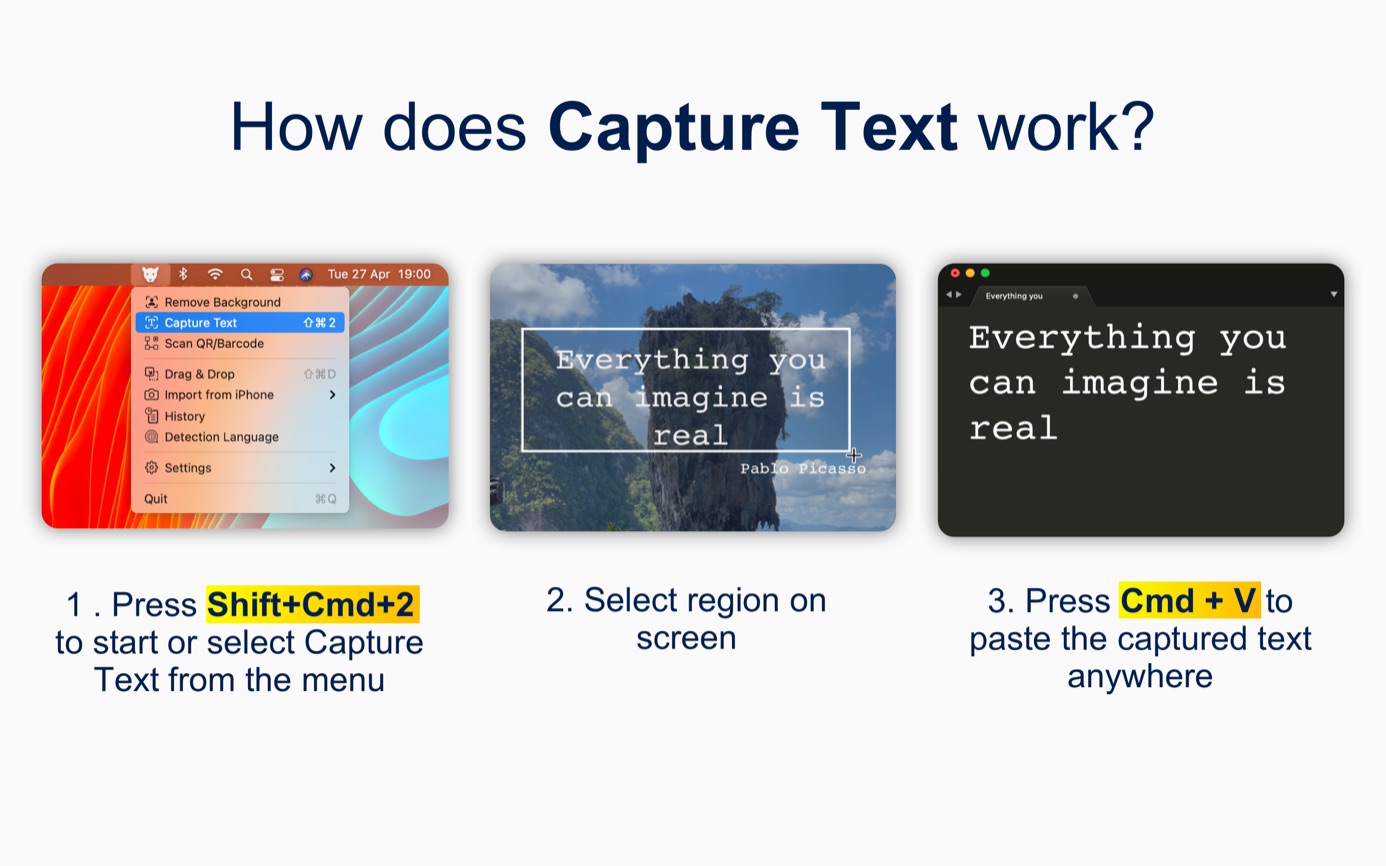
- Select translation capture
Open LensOCR from the menu bar, choose its translation capture mode, and select a screen region around the text. Include the full sentence where possible.
- Review and use the result
LensOCR copies the translation to the clipboard. Paste it into your notes, compare it with the original screenshot, and check names and figures.
Capture enough context for a useful translation
An isolated word can have several meanings. A sentence from a software dialog or a paragraph from a document gives the translation more context. Keep nearby punctuation inside your selection and avoid cutting through a line of text. If the screenshot contains several unrelated panels, capture the relevant panel first.
Small type and a compressed image can make recognition harder before translation begins. Enlarging the image helps you see whether a character is a letter, a number, or part of an icon. Prefer the original screenshot over a copy that has been compressed repeatedly in a chat thread. A clear source gives you a better basis for checking the result.
Choose a language and check translation readiness
LensOCR remembers the target language you selected. Before translating another screenshot, check that the remembered choice still matches your task. This matters when you switch between preparing an English note and sending a message in another language. Reusing a language saves a selection step, but the previous choice may not be the one you need now.
On eligible Macs, LensOCR uses Apple Intelligence for on-device translation. An online fallback on an ineligible device requires your explicit consent. If translation is disabled or preparing, finish the required setup before capturing again. Language support can vary, so confirm that the source and target languages you need are available rather than assuming every pair works.
Review translated screenshot text before copying
Keep the screenshot open while reading the translation. Proper names, product labels, dates, and short abbreviations deserve a second look because an OCR mistake can change the meaning of the sentence. When a result seems surprising, enlarge the original and capture a shorter passage. This helps separate a recognition problem from an ambiguous translation.
For instructions, read the complete translated passage before following a single step. A label without its surrounding explanation can be misleading. Copy a useful passage into your notes with the source context, such as the application name or the document page. That small addition helps you understand the text when you return to it later.
Use a screenshot workflow for text you cannot select
Screenshot translation is useful when the words are part of an image, a presentation slide, or a dialog that does not allow normal selection. The same approach works with a visible passage in a scanned PDF: open the page, make the text readable, and capture that portion of the screen. You are translating the visible passage, so move to another page for the next one.
If the text is already selectable, copying it directly may be quicker. Apple also provides Live Text translation in supported image views. LensOCR's screen capture approach is useful when you want a consistent way to select visible text across the apps you use during the day.
Questions about this workflow
Why is screenshot translation preparing on my Mac?
Translation must be ready before LensOCR can return a result. Allow any required preparation to finish and resolve a disabled state before capturing again. If your device needs the online fallback, you must explicitly consent to that option.
How much screenshot text should I select for translation?
Start with a complete sentence or a short related paragraph. Include punctuation and enough context to identify the subject, while leaving unrelated panels outside the capture. Split a long page into readable passages and review each result.