

The steps
- Show the entire QR code
Open the image, document, or web page containing the code. Make the square visible at a readable size, with its edges and surrounding margin intact.
- Choose QR or barcode capture
Open LensOCR's menu bar controls and select the QR or barcode capture mode before starting the screen selection.
- Select one code
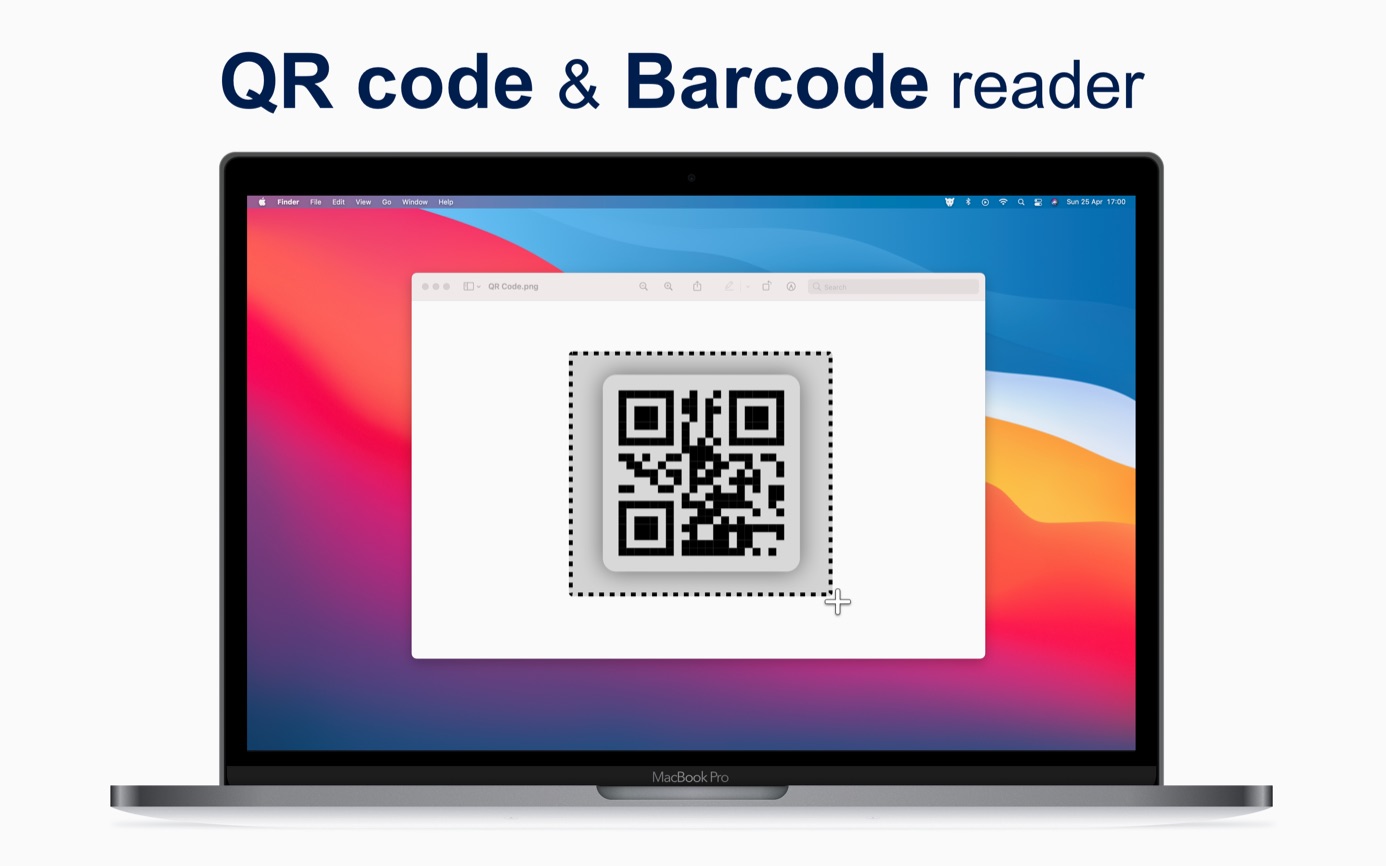
Draw the capture region around the QR code you want to decode. Include the complete code and a small margin, while leaving other codes outside the region.
- Paste and inspect the payload
Paste the clipboard contents into a plain text field. Read the result and check the address when it contains a link, then use it in the appropriate app.
Read a QR code from a screenshot or document
A QR code on your Mac is already an image you can capture. You do not need to move it to another screen before selecting it. Open the screenshot, email attachment, presentation, or PDF page where the code is visible, then bring the entire square into view. If part of the code is hidden behind another window, move that window first.
Zoom a small code until its pattern is clearly defined. Keep the plain margin around the square in the selection, because the code's boundary helps distinguish it from nearby content. A stretched or heavily blurred image may remain difficult to decode even after enlargement. When possible, return to the original document or screenshot rather than using a compressed copy.
Capture one QR code at a time
LensOCR copies the first decoded code from the selected region. If a page shows several codes, select the one you need with a tight region that still contains its full margin. A large capture containing several codes can give you a payload from a different code than the one you meant to use. Repeat the workflow separately for each code you need.
The capture mode matters. Text capture reads ordinary written characters, while the QR or barcode mode decodes the pattern in the code. Choose the intended mode before selecting the region. If you are trying to copy a printed address beside a QR code instead, use text capture and select that written address rather than the square pattern.
Understand the decoded payload before using it
A QR code can contain a web address or another string of data. The copied result is the payload stored in the pattern, so it may look different from the caption beside the code. Paste it into a text field first to see what you have. This also helps when the code contains ordinary text that you want to keep in a note.
LensOCR does not automatically open the result. If it is a URL, read the domain before pasting it into your browser and opening the page. If the payload is a different type of data, use it only in an app that understands that format. Decoding a code gives you its content; it does not automatically carry out an action such as connecting to a network.
Improve the capture when a code is not detected
Start by checking the selection. The whole square should be inside it, including the corner patterns and surrounding margin. Increase the display size if the code is tiny. Avoid selecting a version that has been stretched unevenly, covered by a pointer, or clipped by the edge of a window. A cleaner view is the first thing to try before repeating the scan.
Check that you selected the QR or barcode mode and that there is only one intended code in the region. A square graphic can resemble a QR code without being a valid one, and damaged codes may fail to decode. If another copy exists in the original message or document, display that copy and try a new capture.
Questions about this workflow
What happens when I select several QR codes together?
LensOCR copies the first decoded code's payload. Select one complete QR code at a time to control which result reaches your clipboard. For a page with several codes, repeat the capture separately for each one.
Where does a scanned QR code result appear?
The decoded payload is copied to your Mac's clipboard. Paste it into a text field to read it. A web address is not opened automatically, so inspect the link and then decide whether to use it in your browser.