The steps
- Make the passage readable
Open the image or screenshot and enlarge it until the words are clear. Keep the full passage visible rather than cutting off the ends of lines.
- Set the voice and reading rate
Choose an available Apple voice and a comfortable speaking rate in LensOCR Settings before capture. New settings apply when the next passage is captured.
- Choose speech capture
Use LensOCR's menu bar controls to select the speech capture mode. Select the region containing the words you want to hear.
- Listen and compare with the source
Follow the passage in the image while listening. If a word sounds wrong, inspect the original characters and capture a clearer or shorter region.
Turn image text into a passage that can be spoken
An image stores the appearance of words. Text recognition turns that appearance into characters that a speech voice can read. That makes the quality of the capture part of the listening task. If the screenshot is blurry or the letters are very small, enlarging the view and selecting a shorter passage gives you more opportunity to check what was captured.
Choose a region with a clear reading order. A single paragraph is a good starting point. A capture containing a sidebar, two columns, and a caption may produce text in a different order from the one you intended. Read one column at a time when the layout is complicated, and move through the document in the order you need.
Choose an Apple voice for the text you are reading
LensOCR uses Apple voices and provides voice and rate choices. Choose a voice appropriate for the language of the captured passage when one is available. Voice availability depends on your Mac's configuration, so check the available choices rather than assuming that every language or voice is installed. A familiar voice can make longer passages easier to follow.
Start at a moderate rate when reading instructions, unfamiliar terminology, or a dense paragraph. A faster setting may suit a passage you already know and are reviewing. Set the rate before capture, and listen to a short sample before continuing through a long document. Capture the passage again after changing the settings. The goal is to understand the text at a pace that works for you.
Listen to screenshots, slides, and visible PDF passages
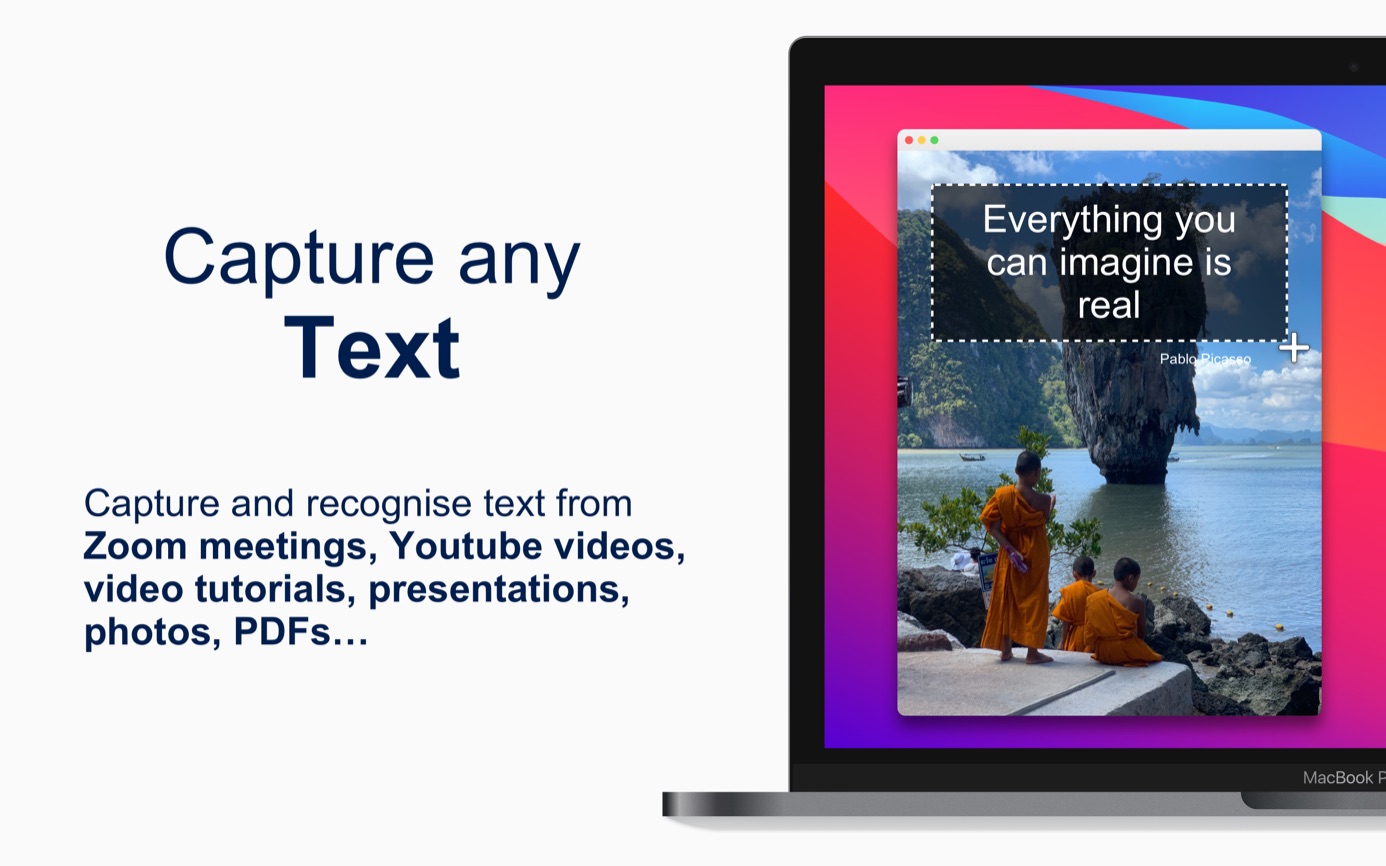
You can use this workflow for text in a screenshot, a presentation slide, or a picture that is already open on your screen. For a scanned PDF, display the page and capture the visible passage. This is a screen capture task: move or zoom the document when you want to read another part, and repeat the capture for the next passage.
For a slide with headings and a chart, choose the explanatory text you want to hear. Capturing the whole slide can mix labels, legend entries, and body text. A speech voice reads the recognized words; it does not turn a chart into an explanation or describe everything shown in a photograph. Choose a region that contains the actual written passage.
Check words that sound unexpected
A spoken result can reveal a missing word or an unusual line break, but it can also make a recognition error harder to notice. Keep the source visible so you can compare a name, figure, or technical term when it sounds strange. Capture the relevant line again at a larger size if the original characters were unclear.
Use listening as another way to work with a passage. For text you need to quote or paste into another document, use LensOCR's text capture mode and check the copied characters against the image. Listening is useful for following the content, while a visible text check helps you preserve the exact wording when you reuse it.
Questions about this workflow
Can LensOCR explain a picture while reading its text?
The speech workflow reads the words recognized in your selected screen region. It does not describe the scene or explain a chart. Select a written passage with a clear reading order for the most useful spoken result.
Which voice should I use for a passage in another language?
Choose an available Apple voice suited to the language of the passage. Check the voice choices on your Mac, as availability varies. Listen to a short capture and adjust the reading rate before working through a longer text.